Managerial Duties
Adding Time Off
Every weekday is required to have time logged. If an employee is not working their full shift, you must categorize that time as Time Off.
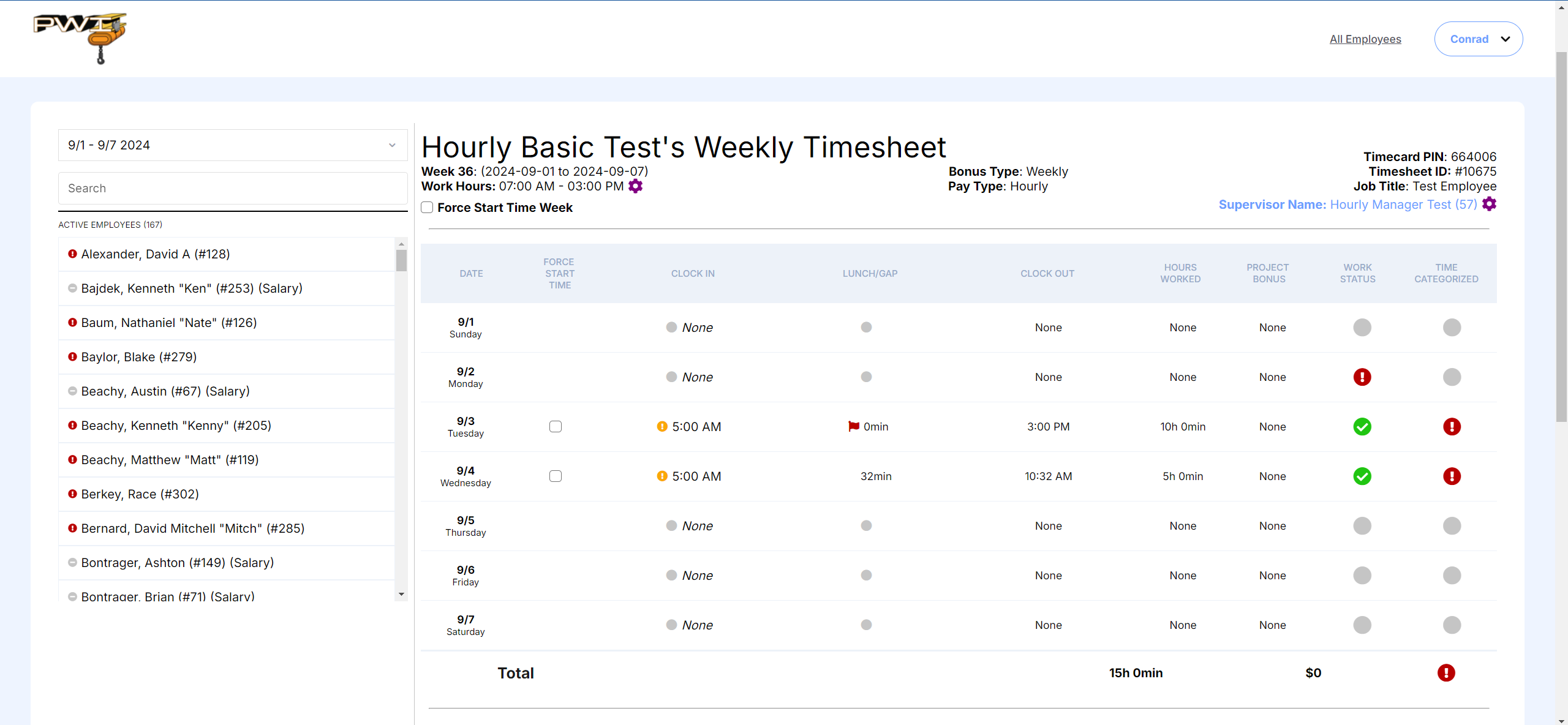
Select the day in your employee's weekly timesheet.
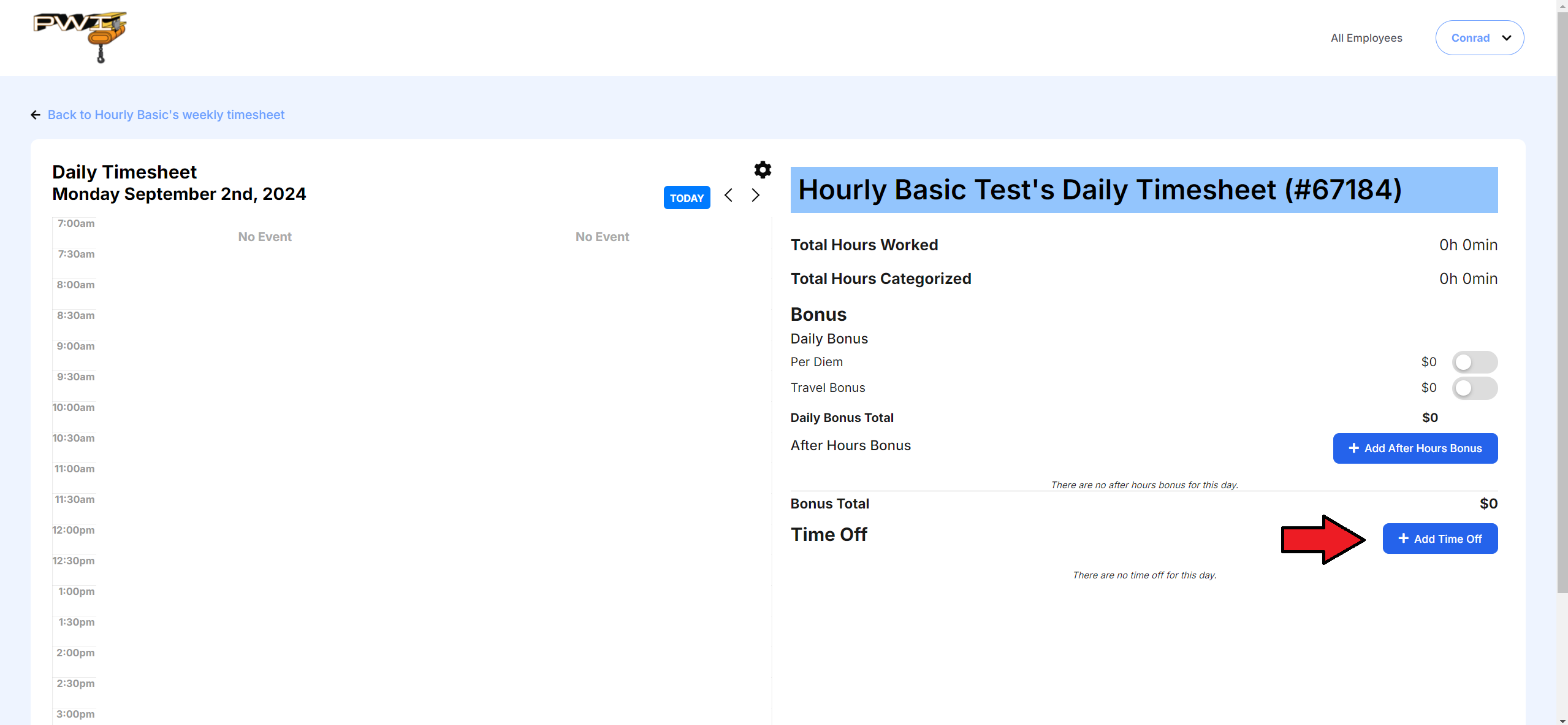
Select + Add Time Off.
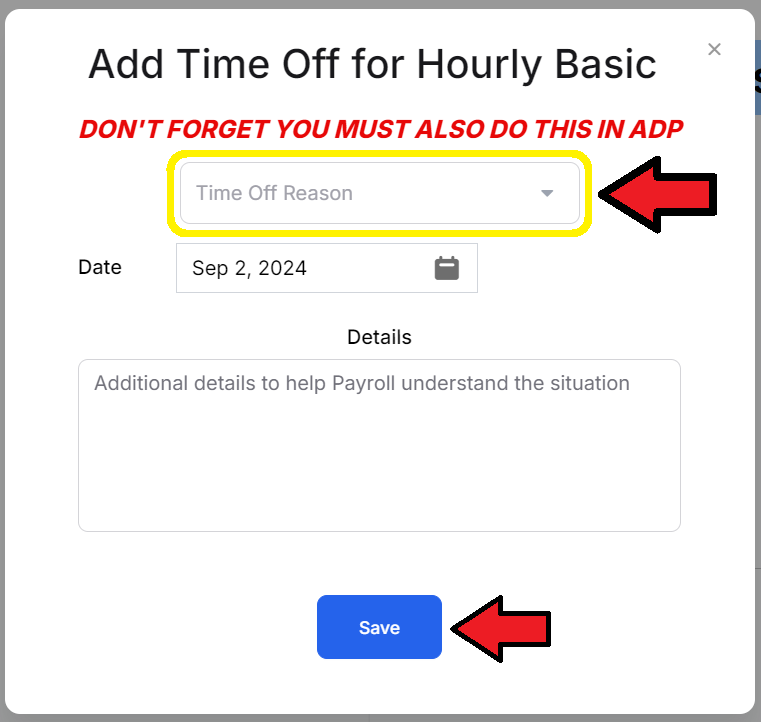
Choose a reason for the time off, then Save.
Forcing Start Time
Some employees may punch in earlier than their scheduled start time. If they are punched in but not working until their scheduled start time, you must fix this on their time card.
In your employee's weekly timesheet find the column labeled Force Start Time.
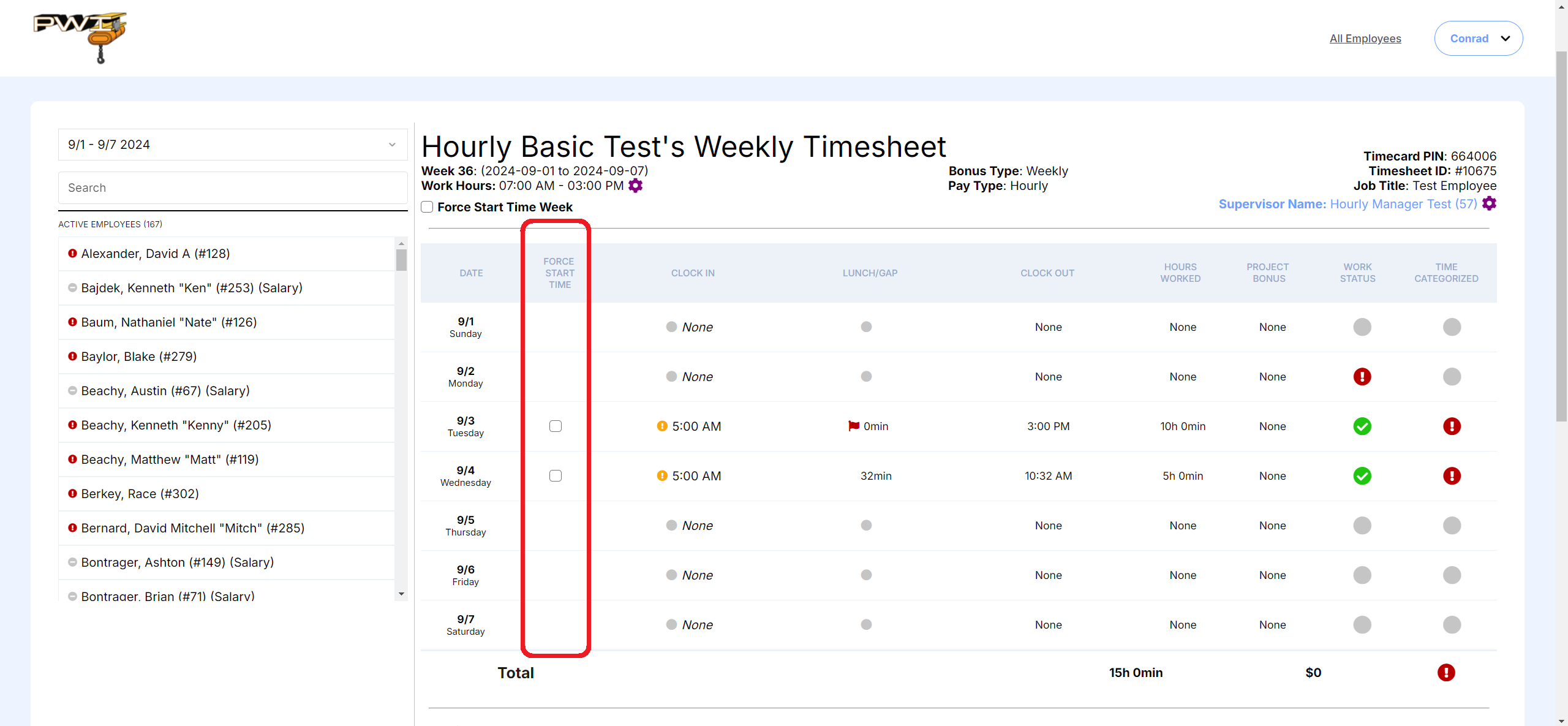
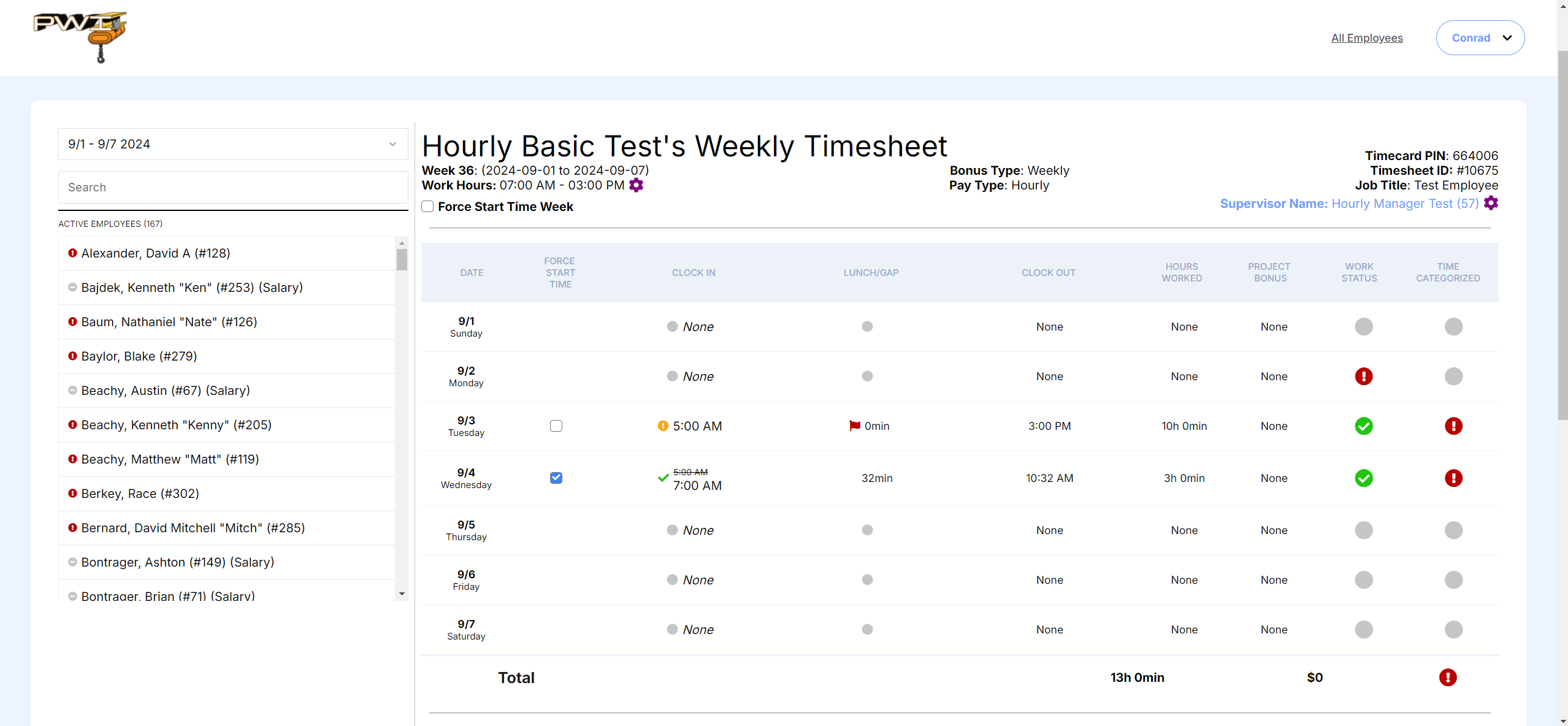
Check the box on any day you wish to force the start time to their scheduled start time. Note: only days with early clock-in will have boxes available.
Approving Weekly Time Card
To approve your employee's time each week, navigate to their weekly timesheet and confirm the following:
Make sure the total amount of hours worked is what you would expect. Each weekday should have time logged.

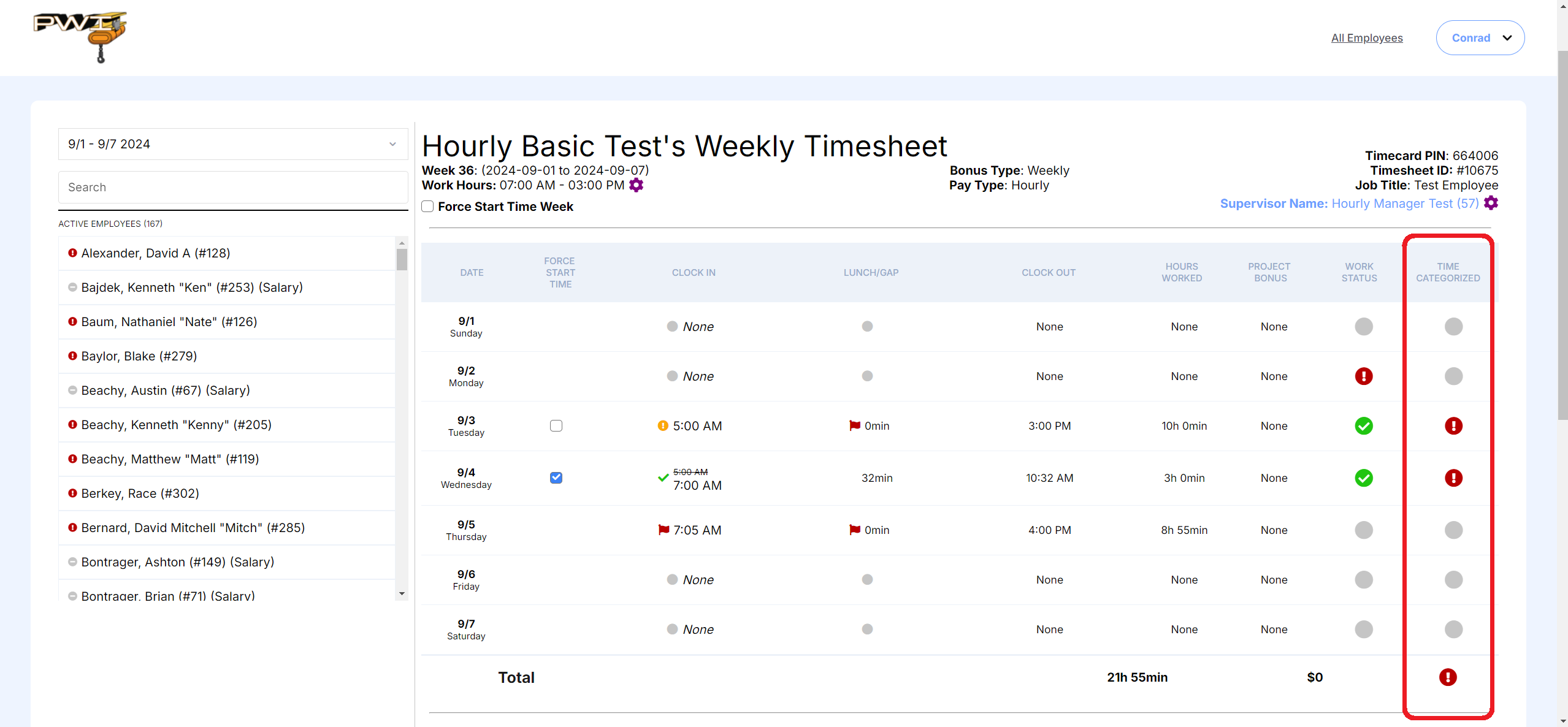
Make sure all work hours are categorized by referencing the Time Categorized column--any day that has a red exclamation point needs to be remedied.
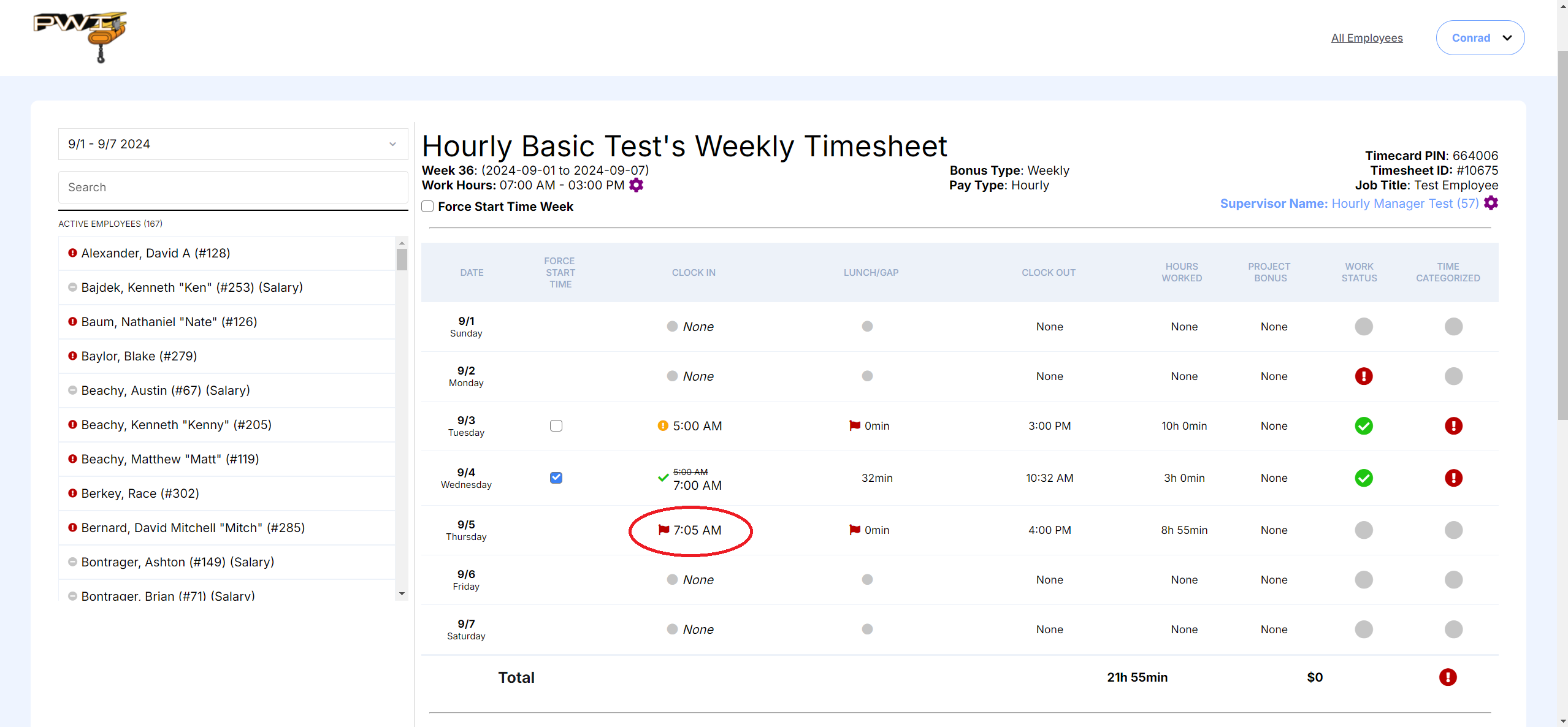
You will see a red flag next to their recorded Clock In time when they are tardy.
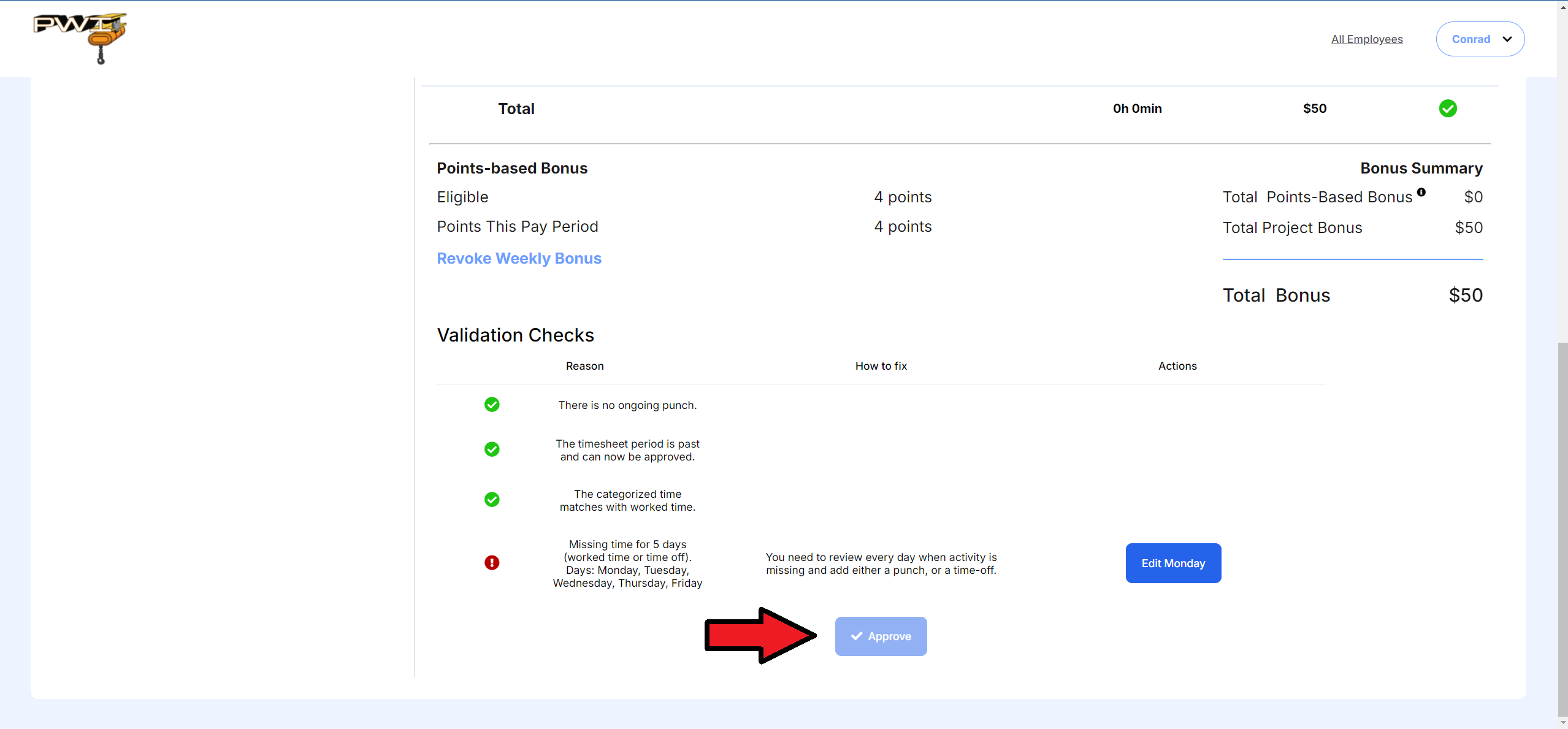
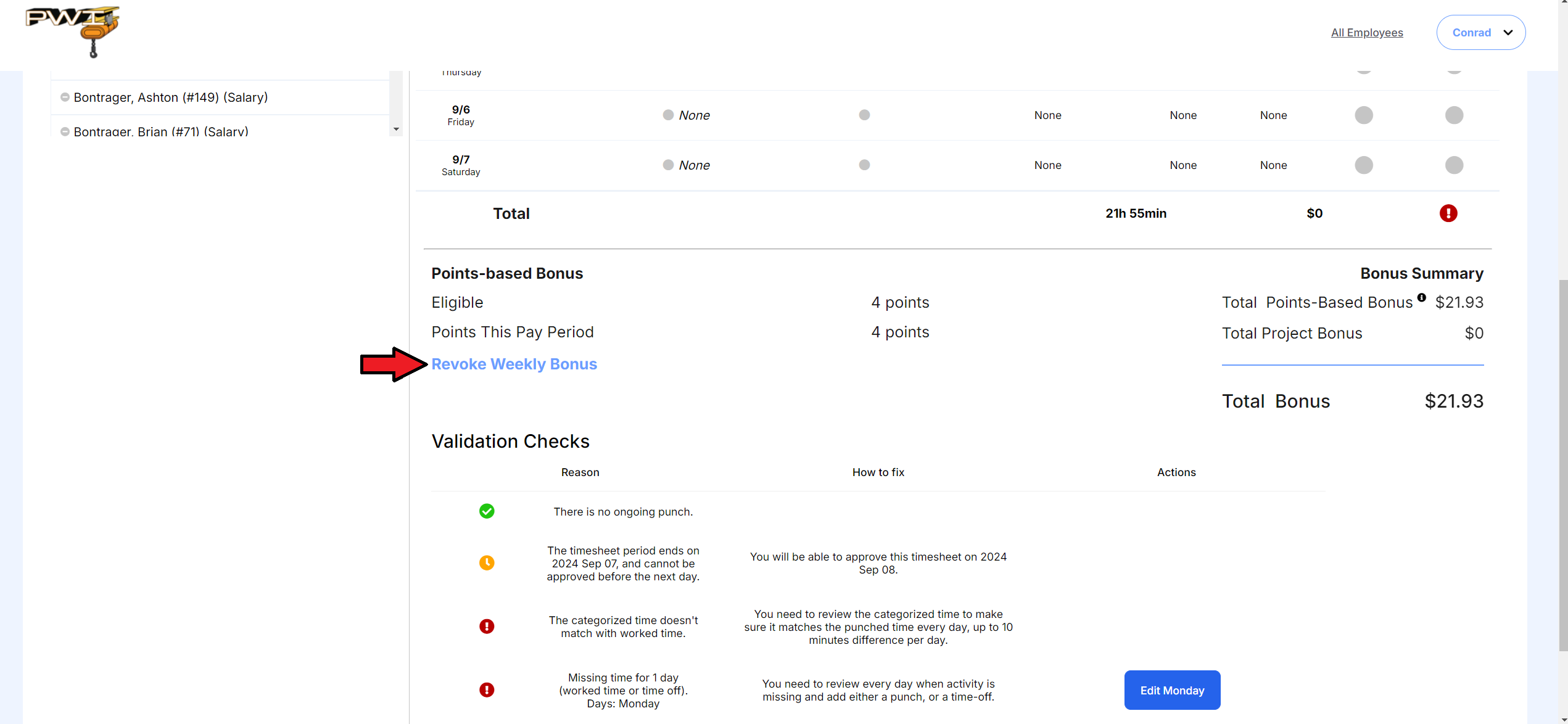
Select Revoke Weekly Bonus towards the bottom of the time sheet to add points via the portal.
Once everything is verified, you may select Approve at the bottom of the time sheet.