Assets
Assets is an application that is designed for tracking large assets of PWI. This includes keeping records of all assets, requesting new assets, and approving/denying asset requests.
Access and Visibility
This app is only accessible to management (i.e., blue-level and higher). If an orange-level employee is in need of a new asset, it is their supervisor's responsibility to create an asset request. Each color level is also designated a budget, which is the dollar amount they can approve without needing approval from their superior.
Supervisors green-level and up have the ability to view approval requests and asset requests for their direct reports.
Approval Process
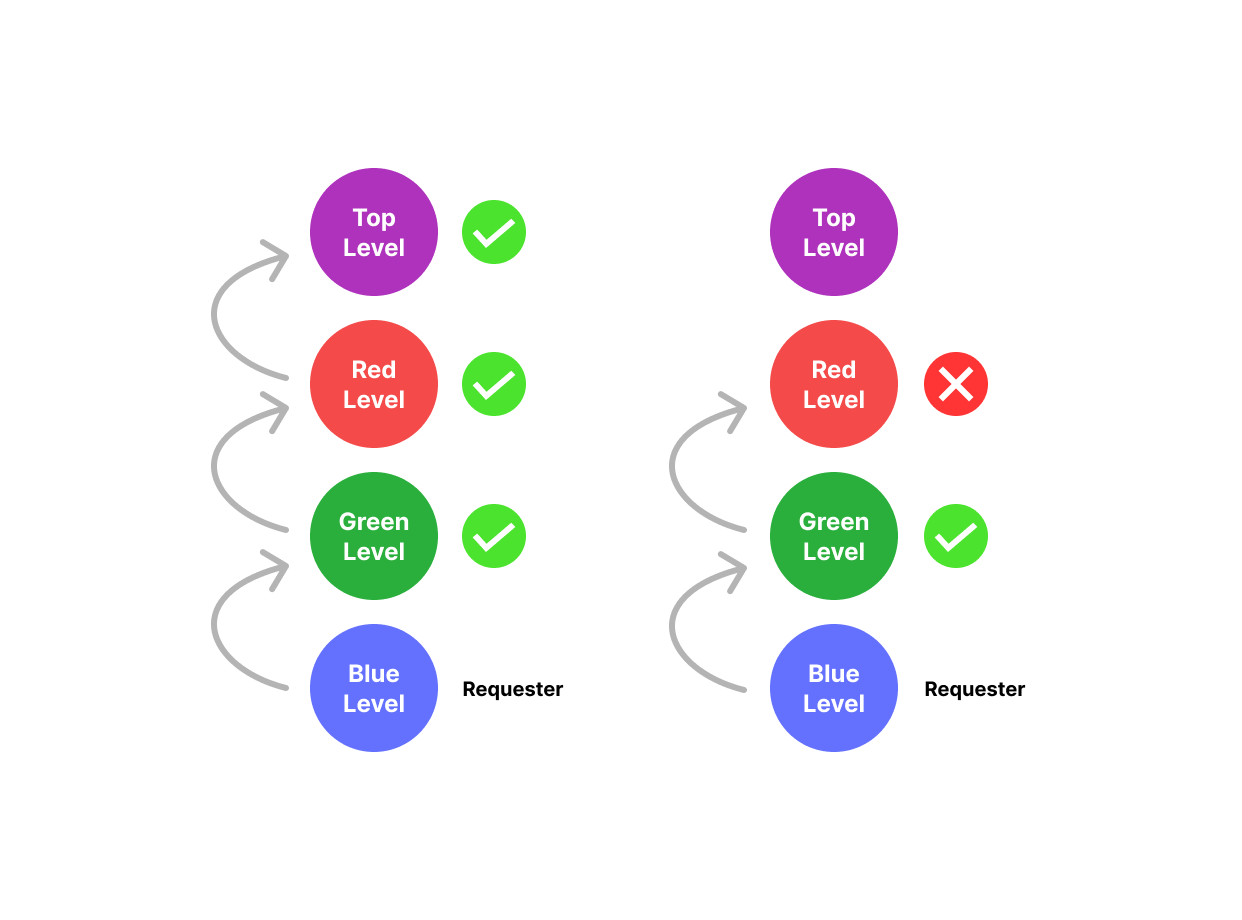
The amount of approvals needed for purchasing a new asset is dependent on the cost of the asset. When an asset request is made, it must be approved by the requester's supervisor. If the dollar amount of the asset exceeds the approval budget of the supervisor, it must then go up the chain to that supervisor's supervisor, and so on. Ryan Miller and/or Dean Grass have the final say on asset requests that exceed all other approval budgets.
At any point up the chain of supervisors, an asset request can be denied. If an asset request is denied, the approval process will end there and not move further.
If an asset passes final approval, the following things will happen:
The requester and all supervisors involved in the approval process will be notified of the final approval.
An asset record will be created automatically.
Asset managers will be notified via email of the new asset record.
The person responsible for purchasing the asset will be notified via email of the new asset record.
Using the App
Read below to understand how to do all basic actions in the Assets app.
Requesting an Asset
In My Profile, navigate to the right side of the page and make sure you are viewing the Asset Requests tab. Select + Add New to start a new asset request.
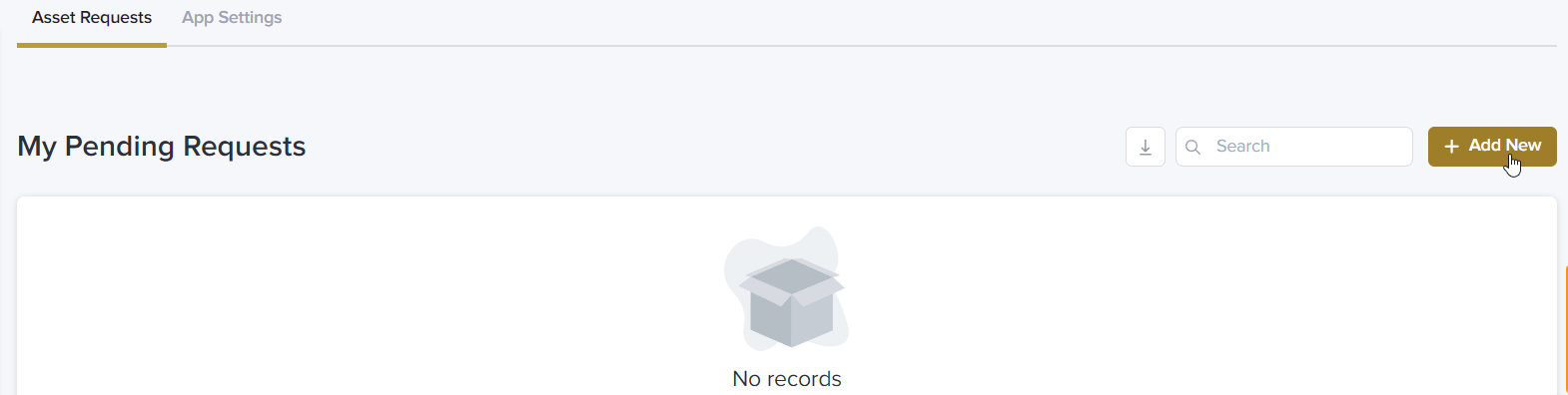
In the form, you will be required to enter the following:
- Asset Type
If you cannot find a suitable asset type in the list for the asset you are requesting, talk with your supervisor for direction.
- Maximum Cost Estimate
An asset purchase must not exceed this value. This value can be changed, at your supervisor's discretion, during the approval process.
- Description
Be as descriptive as you can and/or provide a link to verify the cost estimate.
- Business Reason
Why is this asset needed?
- Estimated Date In Service
When you need the asset available for use, not when you need your request approved or when the asset needs purchased.
You may also choose to provide images and a preferred vendor to acquire the asset from.
Once the request has been submitted, you will receive a confirmation email and your supervisor will receive an email to review it.
Reviewing an Asset Request
Green-level supervisors and up will see an Approvals tab in My Profile, which is where they will see all approval requests that they are responsible for addressing. When a decision has been made, simply select Approve or Deny in the top right corner of the approval request and the requester of the asset will be notified accordingly.
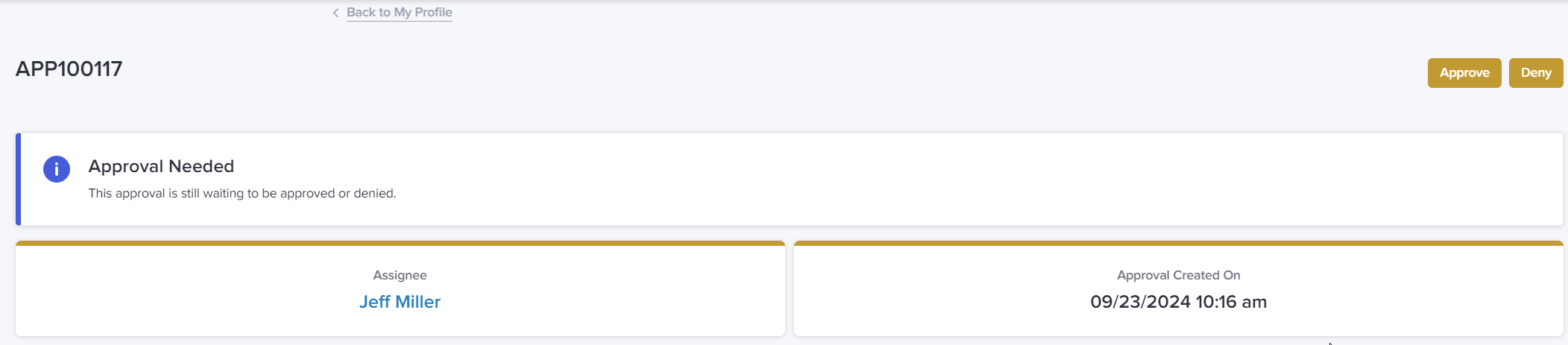
If you deny a request, you will be required to provide a reason to the requester for why the asset request was denied. You may want to provide an alternative solution here as well.
Creating an Asset Manually
Assets can be created manually, but only by users with an Asset Manager or App Manager user role. To create an asset, select All Assets in the side navigation, then select + Add New to the right of the search bar.
In the form, you will be required to enter the following:
- Asset Type
If you cannot find a suitable asset type in the list for the asset you are requesting, talk with your supervisor for direction.
- Description
Be as descriptive as you can.
- Cost
Cost of the asset including taxes, fees, shipping costs, etc.
- Estimated Date In Service
When the asset is available for use, not when the asset has been purchased.
- Status
If the asset is available for use immediately, the status should be Active. If the asset is not yet available for use, the status should be Inactive, and then changed to Active once it becomes available.
- Created By
This should autofill to yourself.
Changing Available Asset Types

As an App Admin you have access to the App Settings tab in My Profile. This is where you can edit the different asset types and any important metadata inside them. You have the ability to quick-edit this metadata, by selecting the Quick Edit button.
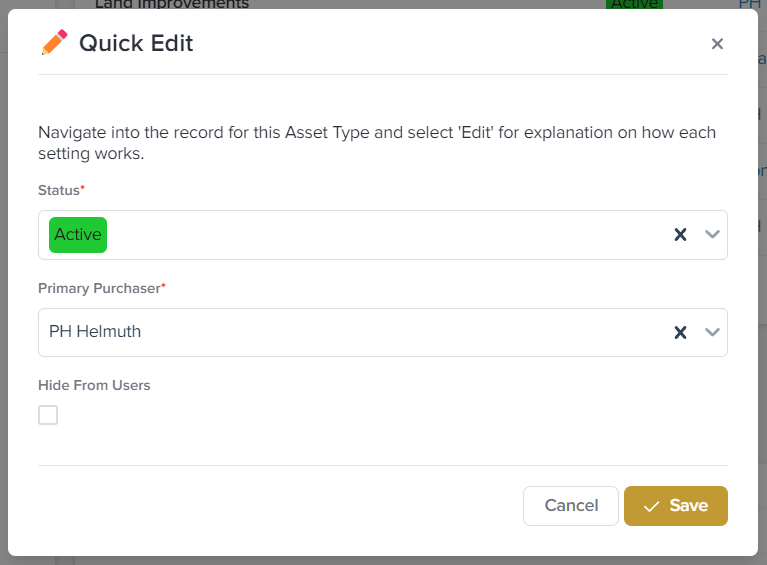
- Status
Every new asset type created will default to the Active status. In the case of an asset type no longer being used, the status can be changed from Active to Inactive. This will ensure assets we still have with that asset type can still be viewed in the portal, while preventing new assets from receiving that type.
- Primary Purchaser
The primary purchaser is the singular person responsible for purchasing a new asset for this specific asset type. This person will be notified via email when a new asset record is created. It is also their responsibility to remedy the data inside the asset record when the asset has been purchased.
- Hide From Users?
Some asset types are necessary to keep active, but in a limited fashion. Checking this box will make it so only high-level managers have access to create or request assets with this type.
Changing Budget Settings
Also in App Settings is the Budgets and Thresholds section. This is where you have the ability to change budget amounts, as well as the dollar threshold for when assets get created. It is not necessary to navigate inside the record for these settings, just select the Edit Amount button to change the amount.
