Flutter Development Setup
To start developing flutter applications, follow these steps:
Step 1: Install the Flutter SDK
If you have not already done so, download and install Visual Studio Code (VS Code).
Install the Flutter extension in VS Code (Settings | Extensions or CTRL+Shift+X).
Visit this link to install the Flutter SDK. Follow the instructions for installing using VS Code.
Step 2: Install and Configure IntelliJ IDEA Ultimate
Although VS Code is a very popular IDE for developing Flutter apps, IntelliJ IDEA provides some small but valuable advantages over VS Code.
Open Jetbrains toolbox.
Find IntelliJ IDEA Ultimate in the list of programs and click the Install button next to it.
Add the Flutter plugin to IntelliJ Idea Ultimate and restart your IDE.
Step 3: Test a Flutter App in IntelliJ IDEA
Start creating a new Flutter App (File | New | Project...).
You will be prompted to locate the Flutter SDK. You can find it in the location you chose during Step 1.
Click Next.
(optional) Give your project an arbitrary name.
Choose Web as the only platform.
Click Create.
Once the project has been created, choose Chrome (web) as the build environment.

Click the Run button in your toolbar.
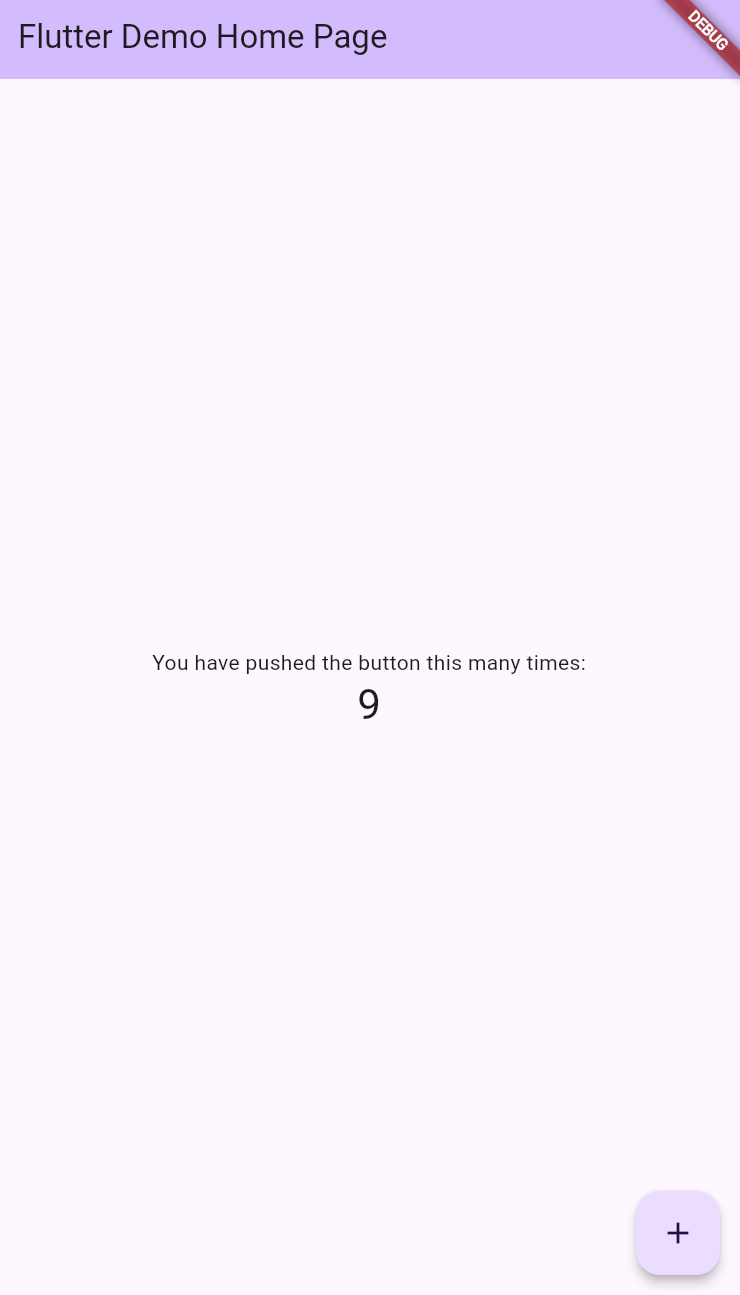
If you see a functioning Flutter app, everything is working properly!