Design Automations Standards
Airtable Fields
Use the generic fields “option, dimension, quantity, etc.” whenever possible
Try to consolidate or reuse fields whenever possible
Delete any fields that are no longer used, only AFTER you make sure that
No other automations are using that field
The data in the old field has been copied to the new field, or is no longer needed
Do not create any new fields without at least one other team member agreeing that it is necessary. New fields can only be considered under one or more of these conditions:
There are not enough generic fields for your automation
The new field will be used in the same way across several automations
There are no fields that support the required input
Automations Form Images
To Create Dimension Callout Images
Create drawing views in an Inventor drawing and save that drawing in the WIP project folder for future use.
Use our standard dimension styles. (do not change font/color/size)
Use a white background with no shading on the drawing view.
Use a screen snipping tool to grab the image you want.
Resize the image to be 1000px on the longest side.
Upload it to the form, using it in the description of the appropriate field(s).
To Create Cover Images for Forms and Landing Page
Open the model in Inventor.
Change the model view projection to perspective (View | Appearance).
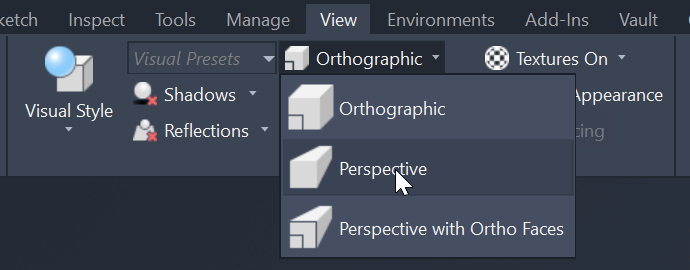
Change the view style to "realistic" with ray tracing enabled, or “technical illustration” (View | Appearance | Visual Style).
Use File | Export | Image to export the image to PNG or JPEG with a transparent background enabled.
Crop and resize the image.
Form header image: crop to the appropriate ratio and resize to a max width of 1000px.
Landing page image: crop to a 4:3 ratio (landscape orientation), then resize to 600px by 450px.
Upload the form header image into the Header & Footer | Form Header Description in MiniExtensions.
Inventor iLogic Code
Always use
Parameter(“paramName”)to set and retrieve the value of parameters. The exception for this is when a rule is very simple, and you do not need to runPushParametersorPullParameters.Whenever possible, set the expression of a parameter instead of calculating the value inside the iLogic rule. This will help ensure that the calculated value updates even when the iLogic rule is suppressed or deleted.
Example:
Parameter(“CalculatedParam”) = “G_L / 2 ul + BridgeSpan”Suppress any iLogic rules in the Base and QTY assemblies before design copying to Automations source files. We want to avoid running these iLogic rules multiple times during the automation.
Automation Software Code
Inline Airtable Field Data
When adding parameters in the BuildParameterList() function, you may use the MyRecord properties in-line with the MyParams.Add…() function ONLY IF the data is clear from the property name. If the data is not clear from the property name, create a var to properly name the data. This will help make your code more readable.
Example 1:
Not Acceptable:
Acceptable:
Example 2:
Acceptable:
Also acceptable, but discouraged: