Live Templates
Jetbrains IDEs allow you to define live templates that can be used to quickly insert code snippets. This is especially useful for MVVM development, where you may find yourself writing the same boilerplate code over and over again.
There are three live templates that are especially useful for developing using the MVVM+ package.
Installing a Live Template
Find the template below that you want to add to your IDE.
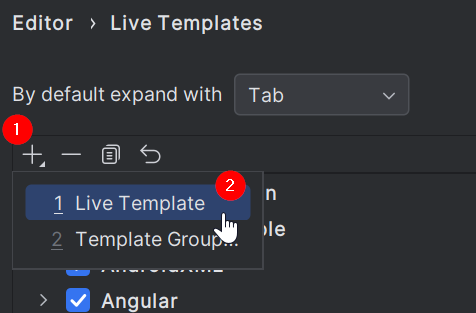
Open File | Settings | Editor | Live Templates.
Find and expand the Flutter group.
Click the + button to add a new live template, and select Live Template.
Paste the live template code from below into the Template text box.
Enter the abbreviation for the live template. This is the text you will type to insert the template.
Enter a description for the template. This will be displayed in the autocomplete hints for the live template.
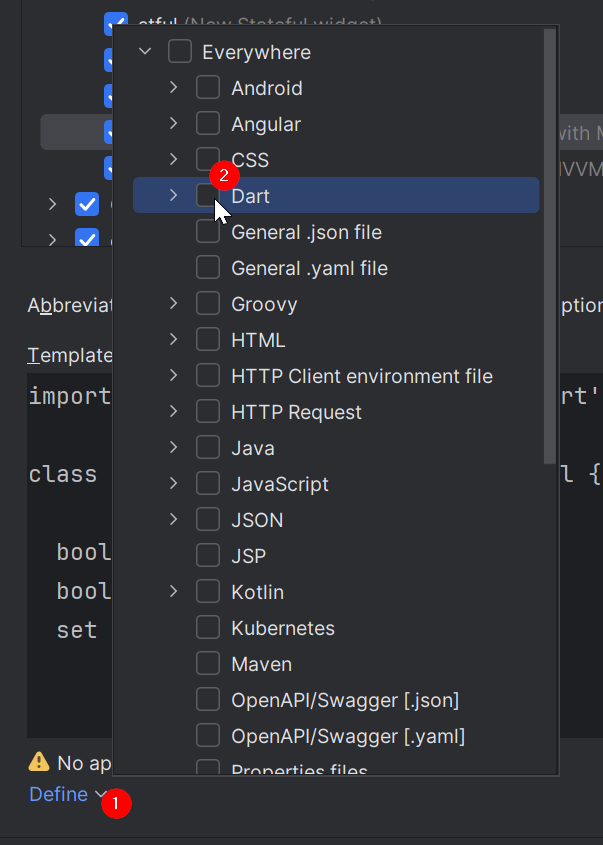
Choose the appropriate context for the live template. It is easiest to just check the box for Dart, but you can be more granular as desired.
Follow any special instructions below for each live template.
You can optionally turn on the Reformat according to style option to auto reformat the code upon creation.
Click Apply.
You can now start using your live template!
Using a Live Template
MVVM+ View Model Property
This live template creates a property set for use in view models. This includes a private backing property to store the value, a getter to retrieve the value, and a setter that updates the value and calls the buildView() method to update the view.
- abbreviation
- propmvvm
- description
- create an MVVM property for use in MVVM+ view models
Template Text
MVVM+ View Model
This live template creates an MVVM+ view model. It is recommended to create the view model first, then use the MVVM+ view live template to create the view.
- abbreviation
- viewmodel
- description
- create MVVM viewmodel that utilizes the MVVM+ package
Template Text
MVVM+ View
This live template creates an MVVM+ view. References to the view model are added automatically. It is recommended to create the view model first, then use this live template to create the view. The code structure assumes the view and view model are in the same folder.
- abbreviation
- viewwidget
- description
- create MVVM view that utilizes the MVVM+ package
Template Text
Special Instructions
This template needs a special configuration to convert what you type into snake_case for the view model file name.
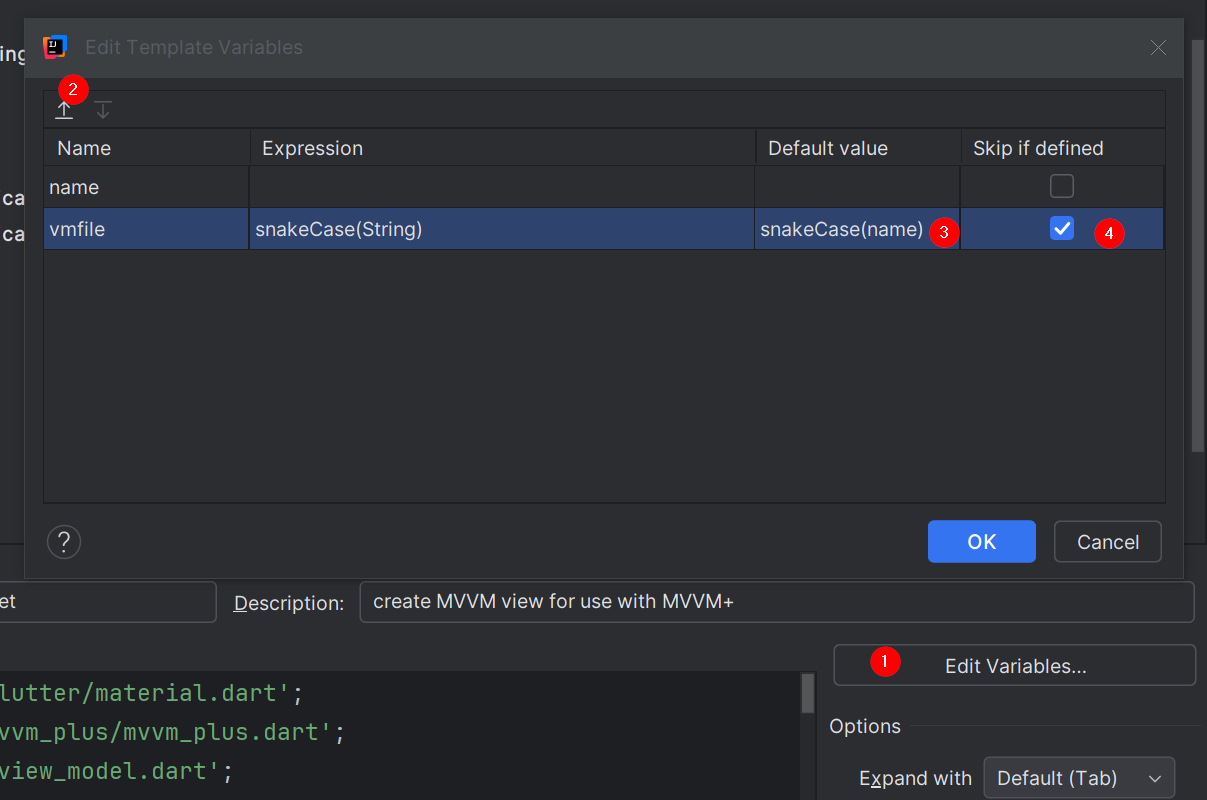
In the settings for the live template, select Edit Variables....
Use the arrows at the top left to move the
vmfilevariable to the bottom of the list.Set the Default Value of the
vmfilevariable tosnakeCase(name). This will convert what you type in thenamevariable to snake case, matching Flutter's file naming conventions.Check the Skip if defined box. This ensures you do not have to "tab through" editing this variable in the template - it is already set from the value of
name.Select OK.