Customer Service Work Order Status
This document is designed to provide comprehensive guidance on how to efficiently manage work orders within a customer service application. It covers essential processes such as opening, holding, and closing work orders.
Work Order Statuses
Work orders in the customer service app can be categorized into several statuses, each reflecting a different stage of the work order's lifecycle. Understanding these statuses will help in effectively managing the workflow.
Status | Description | Example |
|---|---|---|
Open | The work order is active and currently being worked on. | A new customer request has just been entered into the system and Job is ready to start. |
On Hold | The work order processing is paused. | Awaiting parts or additional customer information before proceeding. |
Ready to Complete | The work order is nearing completion, and final checks are being conducted. | The service has been rendered, and the final customer approval is pending. |
Installed/Delivered(completed) | The work order is completed and no further action is required. | The customer's issue has been resolved and all associated tasks have been completed. |
Changing Work Order Statuses
Putting Work Orders on Hold
In the top right corner of a work order view, select On Hold (You may have to select it from the 3 dot menu)
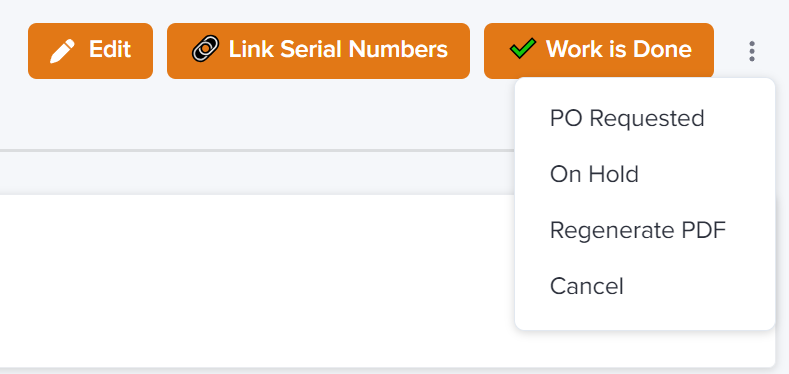
(Optional) Update the notes field to provide a reason for the hold.
The browser may need to be refreshed to see the status update
This will change the Work Order status to On Hold
Reopening Work Orders
In the top right corner of a work order view, select (You may have to select it from the 3 dot menu) select "Reopen"
On the popup confirm "Yes"
Adjust Status Appropriately: Set the work order's status back to Open or another relevant status reflecting its current stage.
The browser may need to be refreshed to see the status update
Marking Work Order Work is Done
Verify Completion by filling in the required fields
In the top right corner of a work order view, select Work is Done (You may have to select it from the 3 dot menu)

Ensure all tasks are done and the work order meets all end criteria.
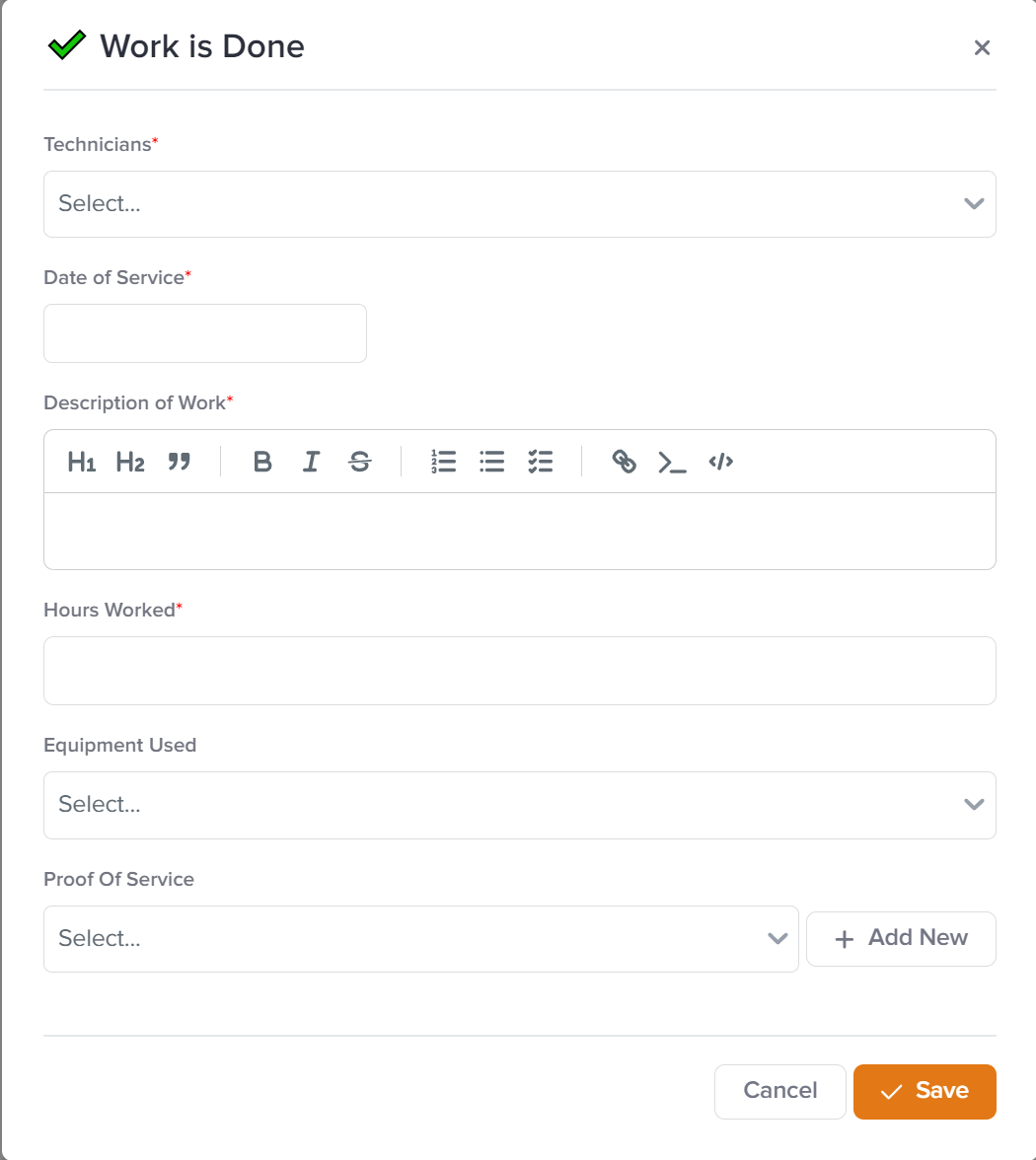
Save
The browser may need to be refreshed to see the status update
>
This will change the Work Order status to "Ready to complete"
Completing Work Orders
Verify Completion by filling in the required fields
Ensure all tasks are done and the work order meets all end criteria.
In the top right corner of a work order view, select Mark Complete (You may have to select it from the 3 dot menu)
The browser may need to be refreshed to see the status update
This will change the Work Order status to "Installed/Delivered (completed)"
For further assistance, contact the portal support team