Custom Shipping Map
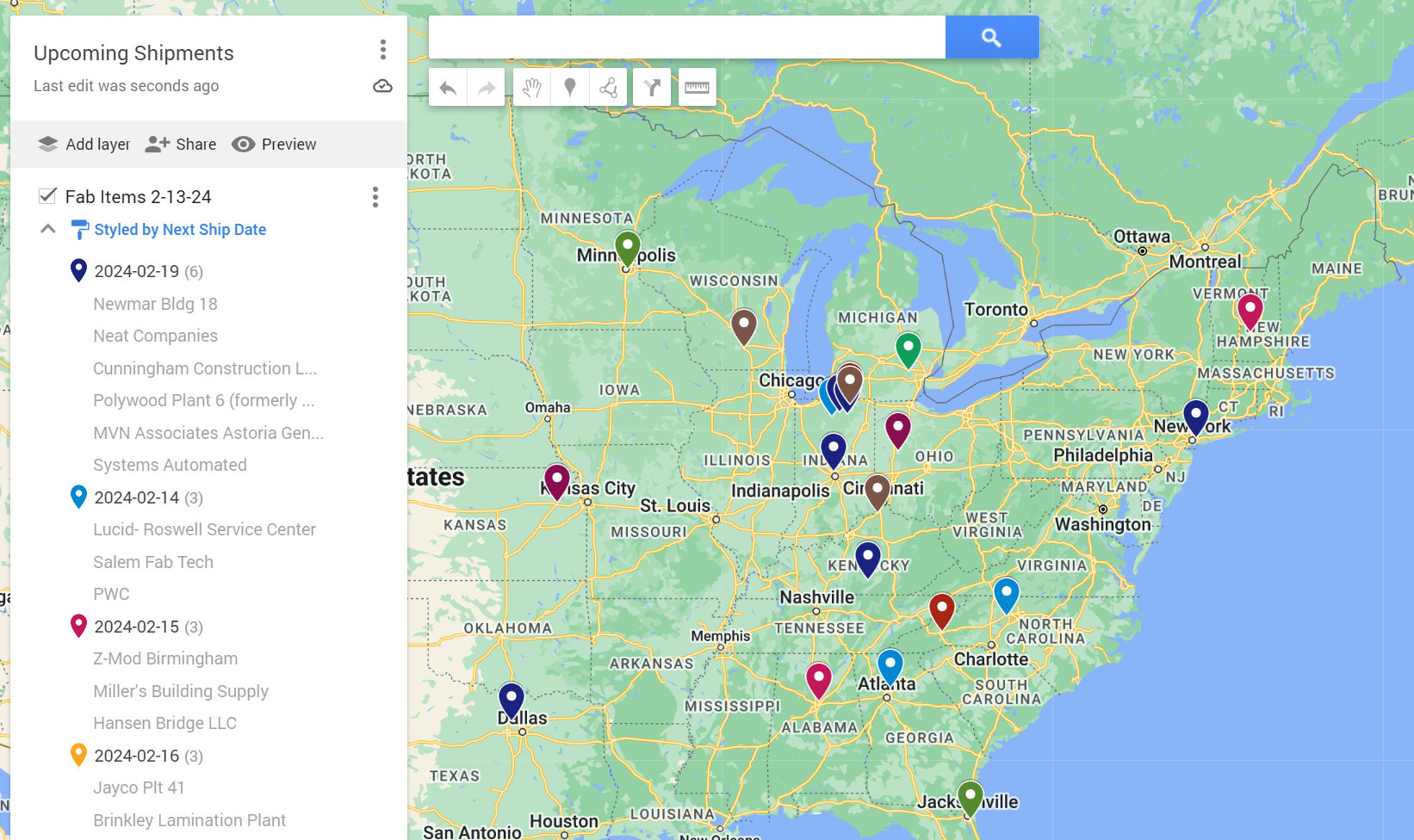
This workflow helps the shipping team identify shipments that can be combined based on location and ship date. This is a manual process. Follow the steps below to create and update a custom map of shipments.
Download Map Data
Navigate to the Shipping Map Export tab on the shipping portal.
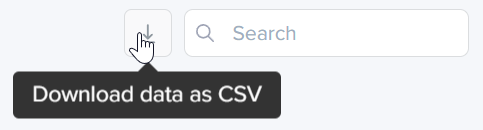
Download .csv files for the Structural Deck Orders and Fab Items sections by clicking the "download data as CSV" button next to the search bar.
View or Create a Map
Navigate to the Shipping Map Export view on the portal.
Click the View Map button near the top of the page to go to Google My Maps.
Select the map you want to edit.
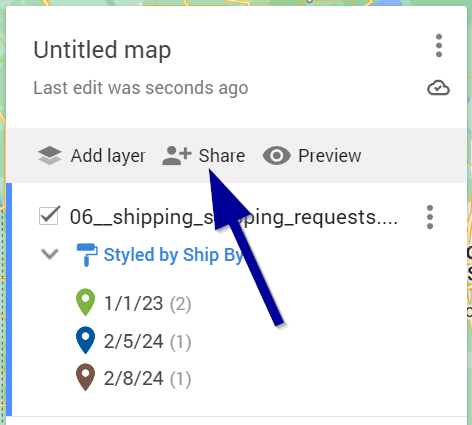
(optional) Share the map with anyone else that needs access to it. To share a map, click the Share button below the map title.
Import CSV Files Into a Map
Open the map you want to edit, or create a new map.
(optional) Delete any layers in the map you no longer need. To change delete a layer, click on the three dots next to the layer name and select Delete this Layer.
Create new layers as needed. You will need a new layer for each .csv file you are importing.
Click on Import underneath the layer of your choice.
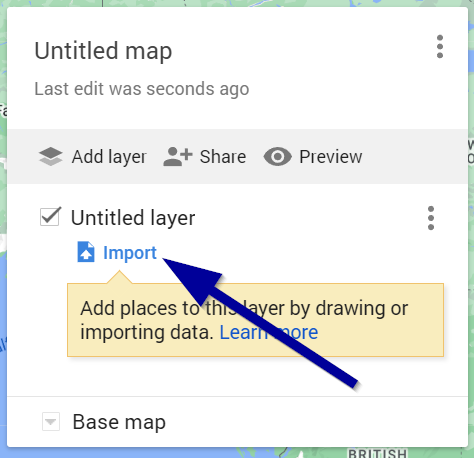
Select the .csv file you want to use.
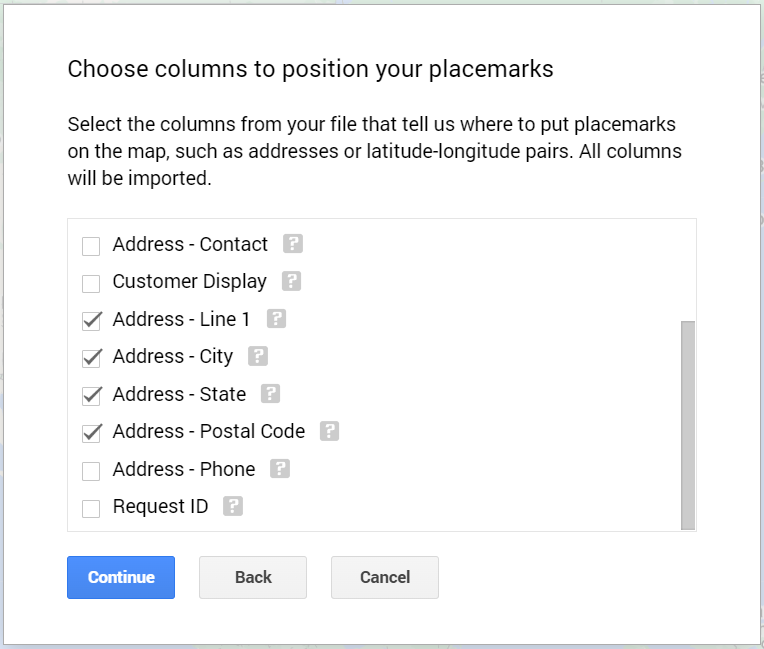
After selecting your file, Google My Maps will ask you to choose columns to position your placemarks. Select the following columns, then click Continue.
Address - Line 1
Address - City
Address - State
Address - Postal Code
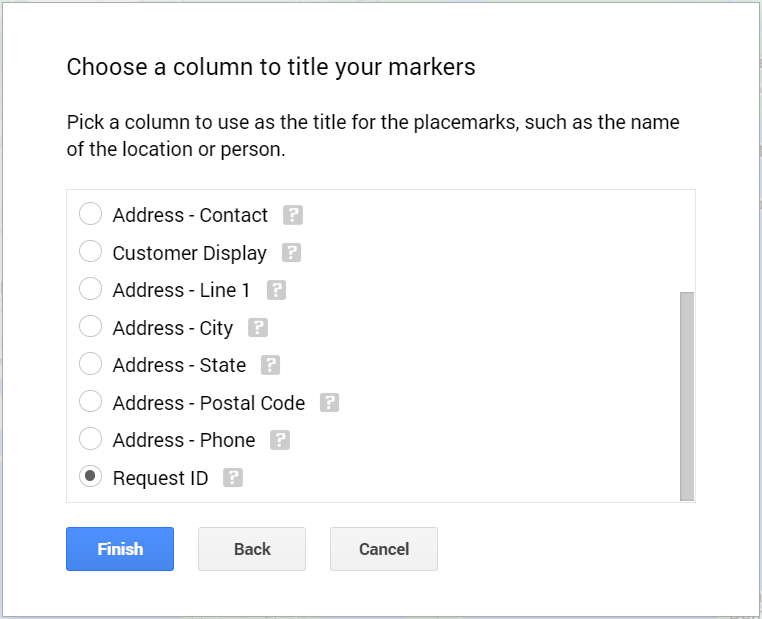
Choose a column to use as a title for the placemarks. Some good choices are Customer Display, Request ID, or Ship By.
Repeat this process for each .csv file you want to import.
Customize Your Map
There are a many customization options for Google My Maps. Here are a few that you may find useful:
- Edit Layer Names
Naming layers helps you organize your data. To change the name of a layer, click on the three dots next to the layer name and select Rename this Layer.
- Change Marker Style
Changing the style of your placemarkers can make it easier to visually group similar items together. To change the style, click the Individual styles button to assign different colors, sizes, or icons based on data columns.
- Add Descriptions
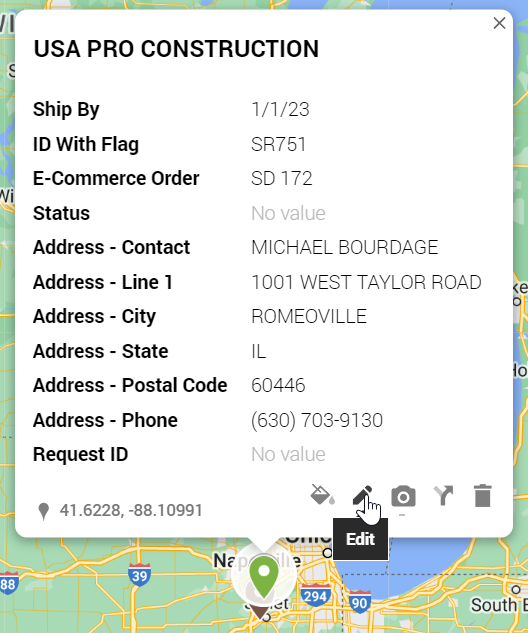
Adding descriptions is a helpful way to store notes on your map. To add a description, select a marker on the map, then click on the pencil icon.